July 18, 2026
Plaud to ChatGPT, Claude, or Whatever AI You Already Use
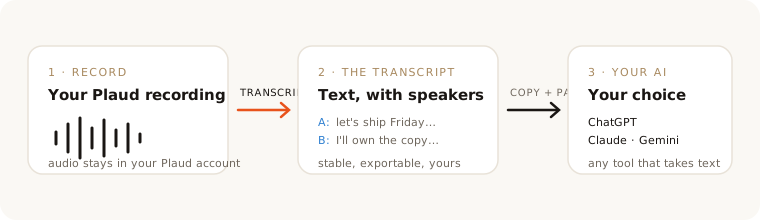
Here is the short version of the tool-agnostic route this post covers: you need the recording as text. Get the transcript, copy it, paste it into the AI you already use with a clear prompt. Any chat tool that accepts pasted text can work with it, whether or not it has an integration.
Updated August 1, 2026. Plaud has since shipped an official MCP connector (announced July 28, 2026) that lets an assistant read your recordings, notes and transcripts directly. If you use ChatGPT or Claude, that route is more convenient than this one and you should try it. Plaud also documents support for MCP-capable developer tools including Claude Code, Cursor, Windsurf, VS Code, Zed and Codex. The workflow below stays useful for AI tools the connector doesn't cover, for transcripts that live outside your Plaud account, and whenever you'd rather paste text than connect accounts. We covered what the connector does and doesn't change separately, including the part about minutes.
This post is the workflow: how to get the transcript, the 3-step routine, and four ready-to-paste prompts for the most common use cases.
Step 0: get the transcript
Two honest routes:
The official route. In the Plaud app, transcribe the recording (this spends your plan's minutes) and use the export option to save the transcript as a text file; the app offers formats like TXT and DOCX. Exact menus change between app versions, so check Plaud's docs if you don't find it. Manual, per file, but fully official. Since July 28, 2026, Plaud also offers an MCP connector that skips the export step in ChatGPT and Claude and can be installed in other MCP-compatible clients. Either way, the transcription is what spends the minutes.
The on-demand route. Scribefy connects to your own Plaud account and transcribes recordings on demand, with speaker labels on every tier; each recording shows its length up front, and nothing is spent until you choose to transcribe it. From any transcript, copy the text or download it as TXT or Markdown. The first 300 minutes each month are free, and beyond that a $6.50 pack covers 600 minutes and never expires (Scribefy pricing, July 2026).
Either way, the goal is the same artifact: a text file (or clipboard) with your words in it, ideally with speaker labels.
The 3-step routine
- Copy the transcript (or open the downloaded file and copy it). Keep the speaker labels; they're what lets the AI attribute who said what.
- Paste it after a prompt. Prompt first, transcript below it. The prompts in the next section are built for this.
- Interrogate, then save what's worth saving. The first answer is a draft. Ask follow-ups ("what did we actually decide about pricing?", "who owns each action item?"), then save the useful output where your work lives. The transcript stays as your source of truth.
That's the whole workflow. Because it is just text and a clipboard, it works the same in every tool, including the ones no integration covers.
Four prompts that do the heavy lifting
Paste the prompt, then the transcript below it.
Meeting → decisions and action items
Below is a meeting transcript with speaker labels. Using ONLY the transcript, extract:
1) Decisions made (with who made them),
2) Action items as "owner / task / deadline if mentioned",
3) Open questions nobody answered.
Quote the transcript directly when attributing a decision. Write "not stated" where
information is missing. Do not invent owners, deadlines or decisions.
Lecture → study notes
Below is a lecture transcript. Using ONLY the transcript, produce:
1) An outline of the main concepts in the order taught,
2) Definitions of each term the lecturer introduced, in their words where possible,
3) Up to 10 flashcards as "Q: … / A: …" covering the most important points (fewer if
the material is thin).
Flag anything the lecturer explicitly said would be on the exam; if nothing was said
about the exam, say so instead of guessing.
Interview → quotes and themes
Below is an interview transcript with speaker labels. Using ONLY the transcript, extract:
1) Up to 10 of the strongest verbatim quotes (with speaker; fewer if the material is thin),
2) Recurring themes with the quotes that support each,
3) Contradictions or tension between statements, if any.
Keep every quote word-for-word; do not paraphrase inside quotation marks, and never
fabricate or trim a quote.
Sales call → objections and follow-up
Below is a sales call transcript with speaker labels. Using ONLY the transcript, extract:
1) Every objection the prospect raised, quoted,
2) Anything they said would move them toward buying (write "not stated" if nothing was),
3) A short, plain follow-up email draft that addresses the top two objections without
pressure. Reference only things actually said; no invented commitments, prices or dates.
Why paste beats a built-in summary
Not because any particular AI is bad, but because of how this technology works. Any built-in summary, ours included, is one model's single pass over your words, and language models can be non-deterministic: the same transcript summarized twice may come back differently worded. So the durable asset is the transcript, and the durable advantage is choice: pasting means using the AI you already pay for and trust, switching models when a better one ships, and asking follow-up questions until the answer is actually useful, none of which a fixed summary button can do.
One practical tip for long recordings: if a transcript is longer than the AI accepts in one message, paste it in labeled parts ("Part 1 of 3…") and ask for a running summary, then ask your real questions at the end.
The one-minute version
Get the transcript (officially via the Plaud app's export, or on demand with Scribefy), paste it into your AI with one of the prompts above, save what's worth saving. Your recordings become material for the tools you choose, not the other way around.
Scribefy is an independent service. Not affiliated with, endorsed by, or sponsored by Plaud. ChatGPT, Claude and Gemini are trademarks of their respective owners, mentioned only to describe compatibility with pasted text.
Related questions
Can Plaud send recordings straight to ChatGPT?
Since July 28, 2026, yes: Plaud ships an official MCP connector that lets ChatGPT, Claude and other MCP-capable tools list your recordings and retrieve their details, notes and transcripts. An untranscribed recording can still be listed, and the details call can return a temporary audio URL, but none of the documented tools starts a Plaud transcription. Minutes were already spent only where there is an existing transcript to retrieve. The text route in this post still works for AI tools the connector doesn't cover, for transcripts that live outside your Plaud account, and whenever you'd rather paste text than connect accounts.
Does pasting a transcript into ChatGPT use my Plaud minutes?
No. Transcription minutes are spent when speech becomes text. Pasting, summarizing or re-asking afterwards spends no further Plaud or Scribefy minutes; the AI tool you paste into may have usage limits or pricing of its own. That is a good reason to treat the transcript as the asset and generate it deliberately.
Why can the summary come out different when I ask again?
Because large language models can be non-deterministic: the same transcript, summarized twice by the same model, may come back differently worded, depending on the model and its settings. It is also why the transcript matters more than any single summary: the text is stable and yours; summaries are drafts you can regenerate anytime.
What format should I paste?
Plain text with speaker labels works best, for example "Speaker A: … / Speaker B: …". Labels let the AI attribute decisions and quotes to the right person. Markdown is also fine; major chat AIs read it happily. Avoid pasting screenshots of text, since you lose search and editing.
Scribefy is an independent service. Not affiliated with, endorsed by, or sponsored by Plaud.